
Use the playground
The dev server is running and you want to know what its two views are for, and which one to trust.
Goal
Read your template in the playground the way its users will: the editor canvas for editing, the live view for the page as it publishes.
Prerequisites
- A workspace with at least one fixture — Write a fixture.
npx concrete devrunning; it prints the URL it bound (port 5180 by default,--portto move it).
Steps
The address is a property, a content fixture and a view
/properties/<property>                                        a property
/properties/<property>/content/<content>/canvas/<canvas-id>   the editor view
/properties/<property>/content/<content>/live/<page-path>     the live view (a website)
/properties/<property>/content/<content>/site/<page-path>/    the site's page alone, as it would publish
A property is named by its folder, a content fixture by its file name. A
rendered template adds ?format=<format-id> to the editor view. A page path is
the page's declared path without its leading slash; leave it off for the home
page.
The canvas is the landing surface: a bare /, or a property's own address, opens
the first content fixture's first canvas. A property with no content fixtures
stays on its address and says so. A content fixture named under the wrong
property is moved to the property it is on, and a name that does not exist shows
a message that lists the names that do. /properties/<property>/facts is
reserved for the property's facts page and shows a message for now.
A canvas is one editing surface from the template's canvases
— a single page on a website, every page at once on a rendered class.
The canvas
Every page of the canvas on one stage, one static frame per page, rendered through the same editor kernel the application uses. Click anything in a frame and the sidebar becomes that instance's panel.
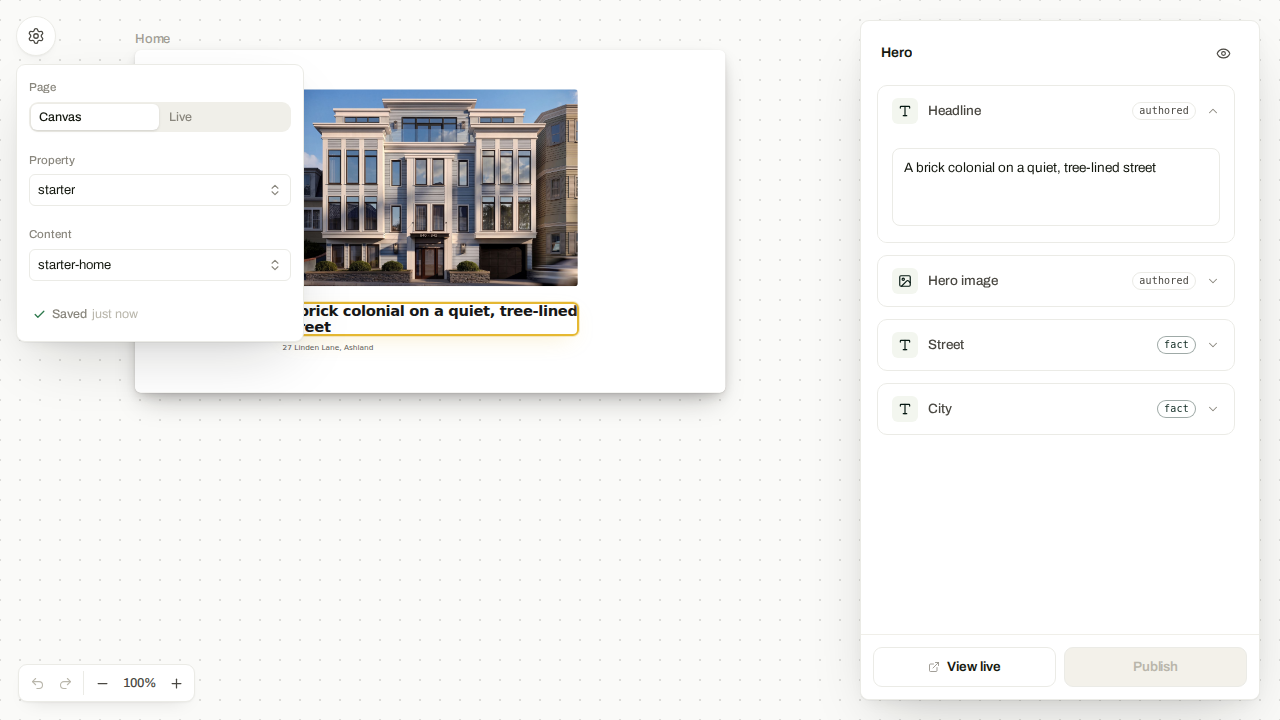
Two things on that panel are worth knowing:
- The slot cards are the editor's own, over the selected instance. What you type re-renders the frame.
- The provenance chip on each card says where the value came from:
fact,computed,authoredorempty. While a change you made is on its way to your files the chip readsedited; once it saves, a value you set readsauthored. The chip is the one thing on this surface a user never sees — it is here so you can tell a slot your fixture stated from a slot the property decided.
The floating control
Everything the playground adds to the editor sits behind one round button, at the top left of every page. When there is something for you to fix, the button shows how many things, and nothing else. Click it to open its list:
- Problems comes first, and only when there are any. It opens a page listing
each one as plain text, with Copy all to hand the list to an agent: a
fixture fault (a media file that is missing, say) with its rule, file and line,
even while that fixture still loads; a template that did not build or compose;
and a save the playground refused, until your next save lands or you dismiss
it. Fix the file and its problem clears without a reload. An agent reads the
same list without the interface, in one request to
api/problemsunder the playground's URL. - Page switches between the Canvas and, on a website template, the Live view of the same content fixture. Live opens at the first page of the canvas you were on; Canvas opens on the canvas that holds the site page you were on.
- Property switches the property you are previewing. Choosing a property opens its first content fixture.
- Content switches between the chosen property's content fixtures.
- Format and Trim & bleed guides appear on a rendered template when there is a choice to make: more than one declared format, or a format with a bleed to draw.
- The save status says whether your last edit reached the fixture, and names any other fixture it changed.
Each switch of page, property, content fixture or format adds a browser history entry, so Back returns to what you were on. The list closes when you click the button again, press Escape, or press anywhere outside it, the canvas included. Throw the button toward any corner and it settles there; it comes back in that corner, open or closed, after a reload.
Visibility and variation
The eye in the panel header hides an optional section: it collapses out of the
page behind an edge tab that brings it back. A required section has no eye, and
a section whose visibility is a compute() is locked, exactly as it is for a
user. The gear opens the section's Settings page, and it appears only when the
section declares more than one variant case and leaves the choice open.
An optional page carries the same eye in its frame title row; hiding one keeps it on the canvas and editable, and drops it from the navigation and from what a Download writes.
There is no developer override of a locked case. The other branch of a computed visibility or a locked variant is reached by writing a fixture on a property that takes it — see Write an edge-state fixture.
Edits save into your fixture files
Every change you make here saves as you make it; there is no Save button. A slot value, a hidden section or page, a variant choice and a crop are written into the content fixture's JSON. An Update everywhere edit, a table edit and a photo added to the property's media are written into the property's folder, so every content fixture on that property shows them.
Only what you set yourself is written. A value a fact or a compute decides stays
out of the file, so the file keeps following its source. Each saved change shows
up in git diff: commit it to keep it, or restore the file to undo it. If you
edit a fixture's JSON by hand while the playground is open, the canvas reloads
over what you wrote.
The save status in the floating control says whether your last edit reached the files. When the playground cannot save a change, the control's Problems list says why and names the file and value to fix by hand.
The live view
View live, in the panel's footer, or Live in the floating control, opens the same fixture with no editor at all: the page over its resolved content layer, exactly as the publisher would emit it, filling the window with the floating control over it. Cross-page links resolve inside the fixture, so you can walk the whole site; the address follows the page you are on, so Back walks the site and a reload opens the same page. Switching the property or content fixture from the control keeps the page and where you had scrolled to, or opens the site's first page when the new fixture switches that page off.
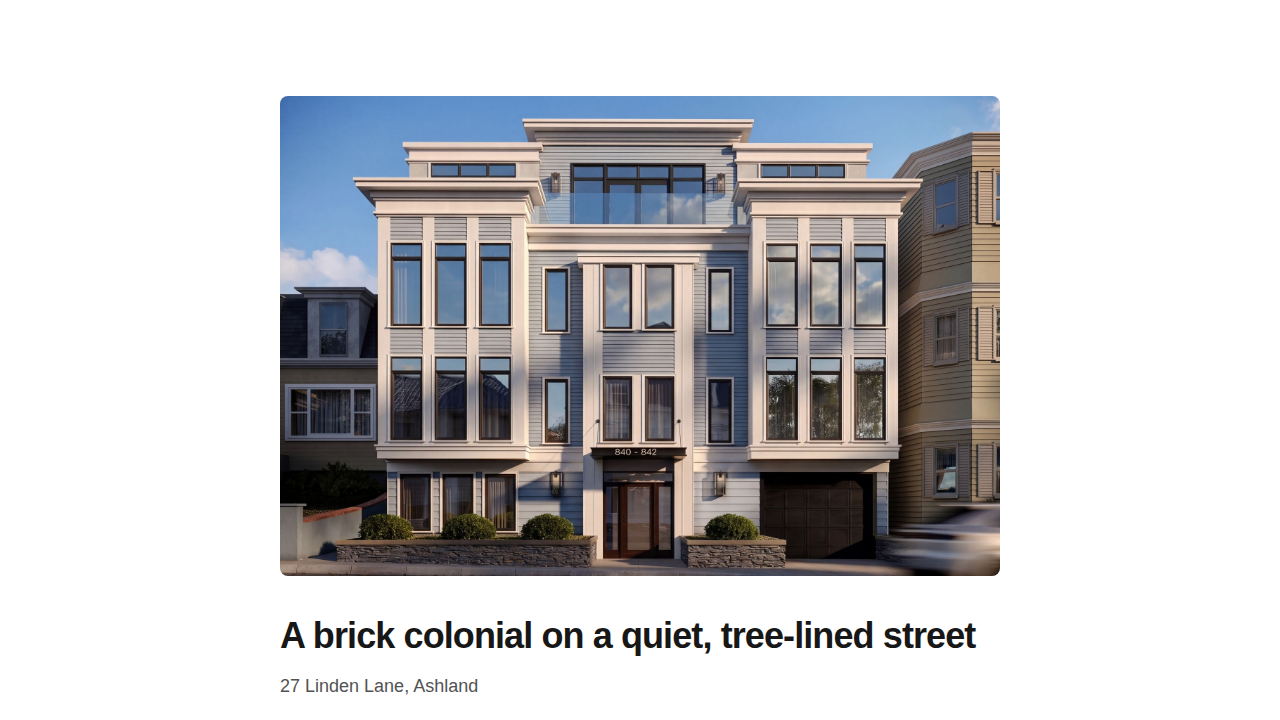
It shows the fixture as saved, so every edit that has reached your files is
there, and it reloads when your files change. The page alone, without the
control, answers at /properties/<property>/content/<content>/site/<page-path>/:
it is the page a publish makes, with its head, icons and share image, and its
files beside it under site/assets/. A page the fixture switches off is not
found there, as it is not published. A lead form on the page sends to the
playground, which checks it as a published site's would and keeps nothing, so
the form shows its sent and its failed state. A rendered class has no live view — there
is no URL for a slide — and its live address opens the canvas instead.
Download
On a rendered class the footer offers Download instead: a zip of every page of the canvas for an image format, a PDF for a document format. Like the live view, it renders the fixture as saved, your edits included.
Publish is inert here. Publishing needs a property and a deliverable, which is the application's job; the playground's job is your template.
Verify
Open a slot card, type into it, and watch the frame re-render — that is the
editor's own path, end to end, over your section. Then run git diff: your edit
is in the content fixture's JSON. Reload the page and the edit is still there,
because the fixture file now states it.